What Most People Get Wrong About Improving Photo Quality
Many photographers rely on megapixels, filters, or an 'enhance' button to fix photos. This guide debunks those myths and explains when to reshoot, when to enhance, and how tools like ImageUpscales really help.
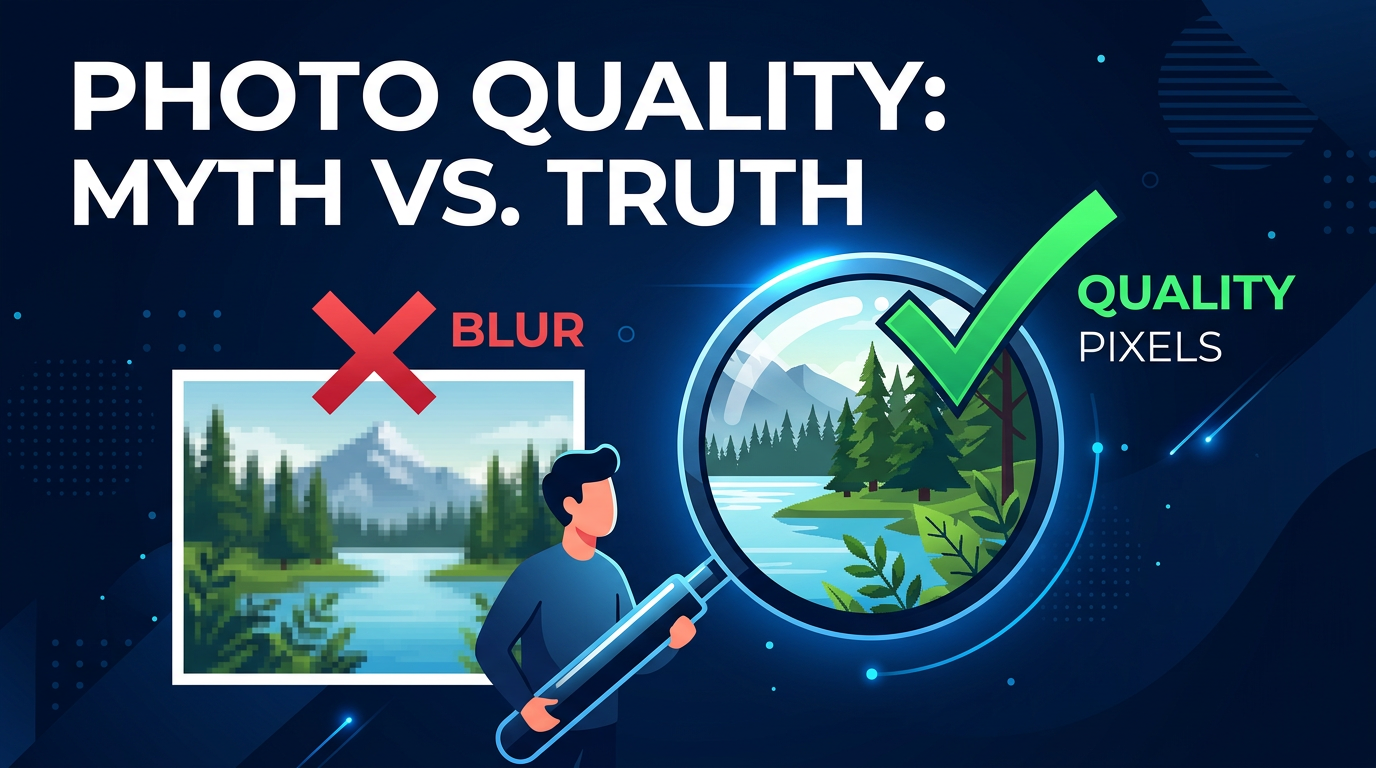
Most people assume improving photo quality is as simple as adding megapixels, slapping on a filter, or pressing an "enhance" button. In reality, image quality depends on several factors beyond pixel count—and understanding them saves time and frustration.
This guide dispels common myths about what makes a photo "better," explains when reshooting is necessary, and shows how modern AI upscaling tools like ImageUpscales can genuinely help when you need more resolution.
Why megapixels aren't the whole story
Megapixel numbers are easy to advertise, but they don't tell the whole truth about photo quality. A higher pixel count only increases potential resolution—it doesn't guarantee detail, dynamic range, or low noise.
Sensor size and optics matter more
A large sensor with good lenses captures more light and detail than a small sensor with the same megapixel count. That affects sharpness, color accuracy, and low-light performance far more than megapixels alone.
Dynamic range and noise
Dynamic range determines how much highlight and shadow detail the camera records. Noise performance influences usable detail, especially in low light. Two 12MP cameras can produce drastically different results depending on these qualities.
Filters and the myth of "fixing" bad shots
Filters are powerful for mood and color. But they can't recreate details that the camera never captured. A grainy, out-of-focus, or badly exposed photo won't magically gain true detail by applying a filter.
What filters actually do
- Tonal adjustments: change color, contrast, and brightness.
- Concealment: hide flaws with blur, grain, or vignettes.
- Style: give a consistent look, not more information.
Why the source quality sets the ceiling — and how AI changes the game
The original file is the ceiling for traditional editing: you can recover some shadow detail or correct exposure, but you can't invent detail from nothing—at least not without advanced techniques.
That's where modern AI upscaling comes in. Tools like ImageUpscales analyze patterns in millions of images to predict and generate plausible high-frequency details when increasing resolution. Instead of merely stretching pixels, AI upscalers create new information that looks natural and sharper at larger sizes.
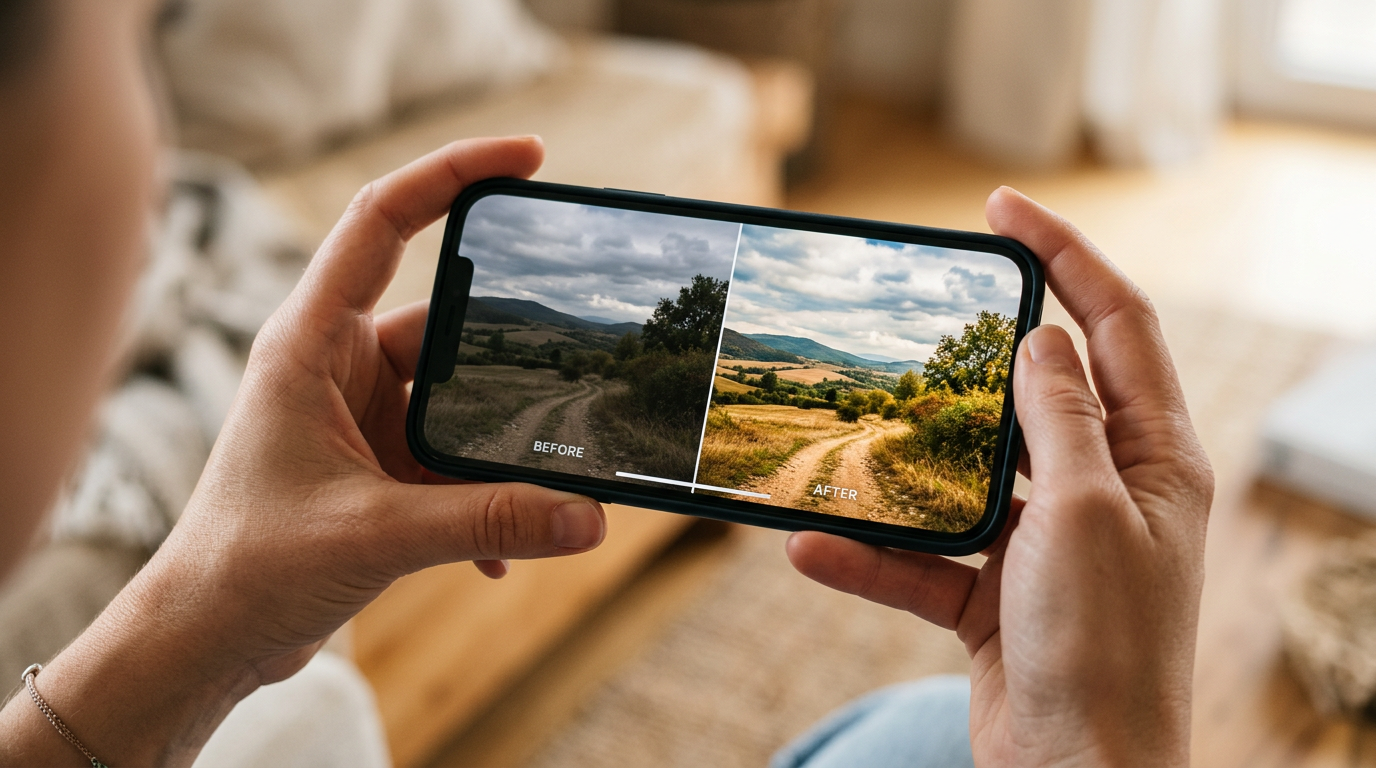
Sharpening vs. AI upscaling: different goals, different results
It's easy to confuse sharpening with true resolution enhancement. Both can make an image look crisper, but they work differently.
Sharpening: faking micro-contrast
Sharpening exaggerates edges by increasing local contrast. It can make an image appear clearer at screen sizes, but over-sharpening produces halos and highlights noise—there's no new detail, only emphasized boundaries.
AI upscaling: predicting plausible detail
AI upscaling attempts to reconstruct fine details based on learned patterns. ImageUpscales, for example, uses neural networks trained to add realistic textures, reduce artifacts, and preserve facial features, producing a credible higher-resolution result rather than just an amplified blur.
When to reshoot vs. when to enhance
Knowing whether to reshoot or enhance saves effort. Use these simple rules:
Reshoot if:
- The subject is out of focus or motion-blurred beyond recovery.
- Exposure is severely clipped in highlights or shadows with no recoverable data.
- You need different framing, expression, or lighting that can't be replicated in post.
Enhance if:
- The image is low-resolution but otherwise sharp and well-exposed.
- You're working with old scans or small social media images and need larger prints.
- The shot has minor noise or softness that can be cleaned and improved.
Practical workflow to actually improve photo quality
Here’s a workflow photographers and hobbyists can follow to get the best results, whether you're preparing images for web, prints, or an archive.
- Start strong: Shoot RAW when possible, use proper exposure, and stabilize the camera. Better input always makes post easier.
- Basic corrections: Fix white balance, exposure, and perspective. Reduce noise moderately before any upscaling to avoid amplifying artifacts.
- Upscale intelligently: Use ImageUpscales to increase resolution. It predicts and adds plausible detail rather than just stretching pixels, which is ideal for prints or cropping.
- Refine: Apply subtle sharpening and local adjustments after upscaling. Check for artifacts at the target size and undo anything that looks artificial.
- Export for purpose: Save versions optimized for web, print, and archive to preserve flexibility.
Frequently Asked Questions
Can AI truly recover lost details?
AI can generate plausible details by learning from large datasets, but it doesn't access the original scene. The results are often convincing, especially for faces and textures, but they're reconstructions—not literal recoveries of original photons.
Will upscaling introduce artifacts?
Some upscalers can produce artifacts, especially if the source is very noisy or heavily compressed. Good AI upscalers like ImageUpscales focus on artifact reduction and natural textures, but always review results at final size.
Are megapixels irrelevant?
Megapixels matter for maximum printable resolution, but they're not the only factor. Sensor size, lens quality, and exposure often influence perceived image quality more than pixel count alone.
Should I always edit in RAW?
When possible, yes. RAW retains the most data for exposure, color, and dynamic range adjustments, giving editors and upscalers more to work with than a compressed JPEG.
How much can I safely upscale an image?
It depends on the source. For modest increases (2x–4x), results are usually excellent. Larger jumps can work but require careful checking for artifacts. ImageUpscales provides options tuned for different upscale targets to help maintain quality.
Conclusion
Improving photo quality isn't about shortcuts. Understanding the limits of megapixels, filters, and sharpening helps you choose the right approach. When reshooting isn't possible, AI tools like ImageUpscales can responsibly add believable detail and real resolution—provided you start with the best source you can get.
Use good capture practices, edit thoughtfully, and leverage modern upscaling to get prints and crops that look naturally better without obvious artifacts.
Related guides from ImageUpscales
Frequently asked questions
Can a tool like ImageUpscales replace better photography?
No, and that is the point. Upscaling preserves trust your photography already earned. It cannot manufacture a moment, fix bad framing, or replace honest light. Treat it as a finishing step, not a rescue plan.
Is a higher megapixel camera the answer?
Megapixels matter less than light, focus, and composition. A 12MP photo with great light beats a 50MP photo shot in poor light every time. Upscaling helps the 12MP version look print-ready when needed.
What about phone "enhance" buttons?
Most phone enhance buttons add contrast and saturation, which makes images look punchy on the phone screen and worse everywhere else. They rarely add real detail. A proper AI upscale is a different category of operation.
A simple decision rule
- Reshoot if the moment is wrong, the light is wrong, or the framing is wrong.
- Upscale if the moment is right but the file is small or soft.
- Skip both if neither helps — not every photo deserves the wall.