Pixel-Perfect Website Images: Upscale Photos for Shops, Ads, and Landing Pages
Website images need to be sharp, honest, and fast. Here is how to upscale once and export clean versions for every placement.
A soft image can make a good page feel unfinished. A giant uncompressed image can make the same page feel slow. The sweet spot is sharp, honest, and lightweight.
This is a repeatable workflow for making images look better across product grids, landing pages, blog posts, ads, and social previews without creating bloated pages.
Seasonal publishing angle
This article is scheduled for the moment people are actively preparing these images, which helps it match seasonal search demand instead of chasing it late.
Start with the real decision
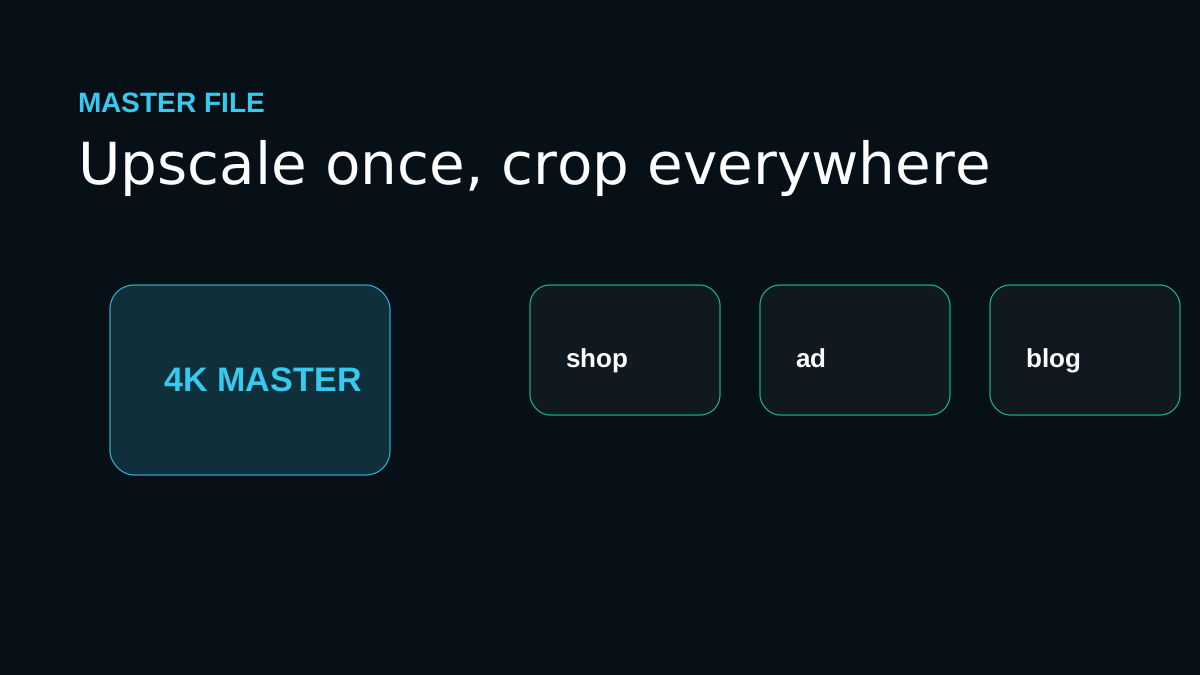
Treat the upscaled image as a master file, not the final web file. The master gives you clean detail; the final exports should be sized for the exact placement.
Quick quality read
The workflow I would use
Create one clean master
Upscale the best source image once, then keep that result untouched for future crops.
Export by placement
Use separate versions for product cards, hero sections, blog thumbnails, ad creative, and social previews.
Protect buyer trust
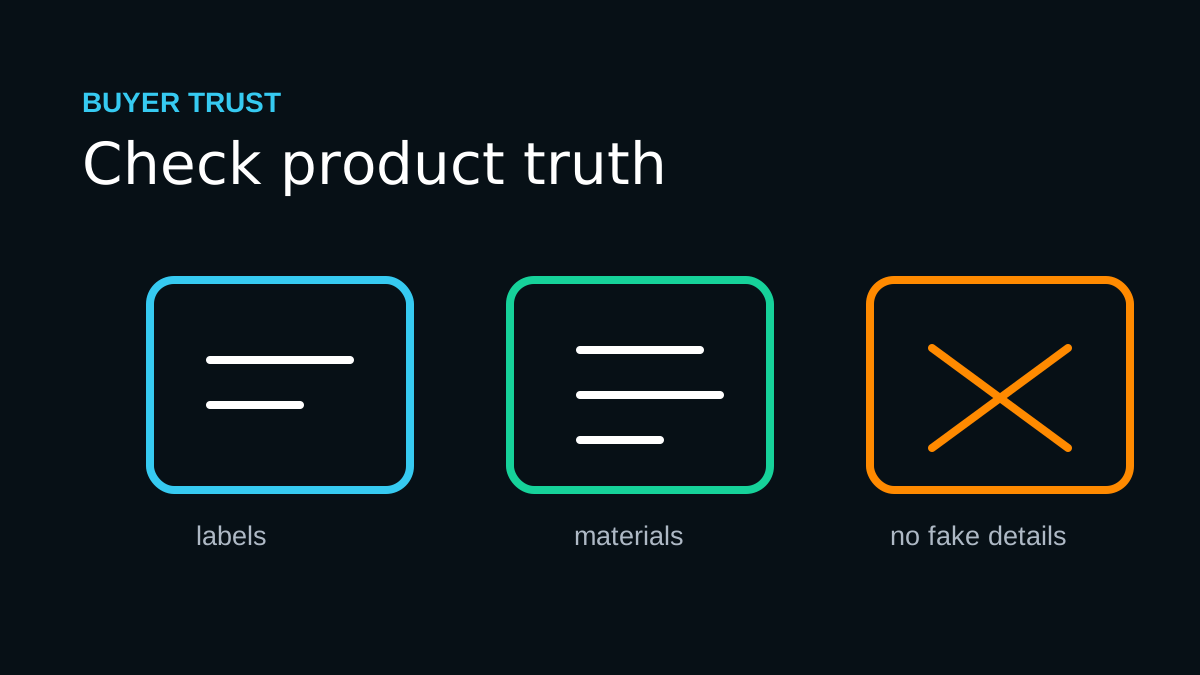
Check labels, materials, seams, packaging, and color before using AI-enhanced product images.
Compress after resizing
A sharp image still needs to load quickly, especially on mobile landing pages.
Workflow map
Create one clean master
Upscale the best source image once, then keep that result untouched for future crops.
Export by placement
Use separate versions for product cards, hero sections, blog thumbnails, ad creative, and social previews.
Protect buyer trust
Check labels, materials, seams, packaging, and color before using AI-enhanced product images.
Compress after resizing
A sharp image still needs to load quickly, especially on mobile landing pages.
Mistakes that make the result look cheap
- Uploading a massive 8K file directly into a small product tile.
- Letting auto-crops cut through products, faces, or important text.
- Using enhancement to make a product look cleaner than what customers actually receive.
The proof check before you publish
Better website images are not just prettier. They help users understand faster, stay longer, and trust what they are seeing.
Before you publish or print
Frequently asked questions
Should I always choose the largest upscale size?
No. Choose the smallest output that solves the real use case. Larger sizes are helpful for big prints and heavy crops, but they can exaggerate flaws from weak source files.
Can AI upscaling fix every blurry image?
No. It can improve many low-resolution or slightly soft images, but severe motion blur, missing faces, and heavy compression require realistic expectations.
What should I check after upscaling?
Inspect eyes, hands, text, product labels, straight edges, fabric, and any area that affects trust. If those areas hold up, the image is usually ready for its destination.
One last practical note
Good image SEO and good conversion design overlap: clear files, descriptive context, fast pages, and visuals that honestly answer the user's question.
Use ImageUpscales to create a clean 4K master, then export page-ready versions for your shop, ads, and landing pages.