LinkedIn Headshot Upscaler: Clean Up a Soft Profile Photo Without Fake Skin
A profile photo should look competent and real. Here is how to improve a soft headshot without making it look AI-generated.
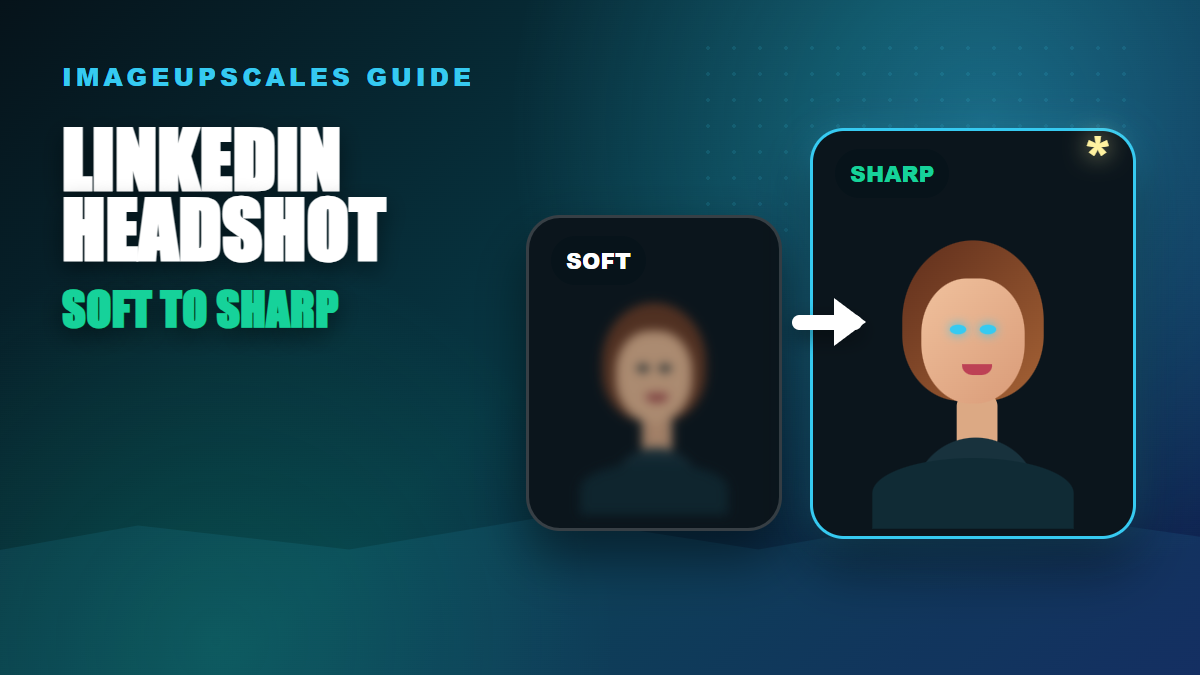
Your LinkedIn photo is tiny most of the time, but people still notice when it looks soft, pixelated, or oddly over-edited.
The job is to rescue an existing headshot for LinkedIn, resumes, portfolio bios, and founder pages without creating a fake AI portrait.
Seasonal publishing angle
This article is scheduled for the moment people are actively preparing these images, which helps it match seasonal search demand instead of chasing it late.
Start with the real decision
A professional profile image needs believable eyes, natural skin, clean hair edges, and enough resolution for cropping. It should not look like a beauty filter or a synthetic headshot.
Quick quality read
The workflow I would use
Use the original portrait if possible
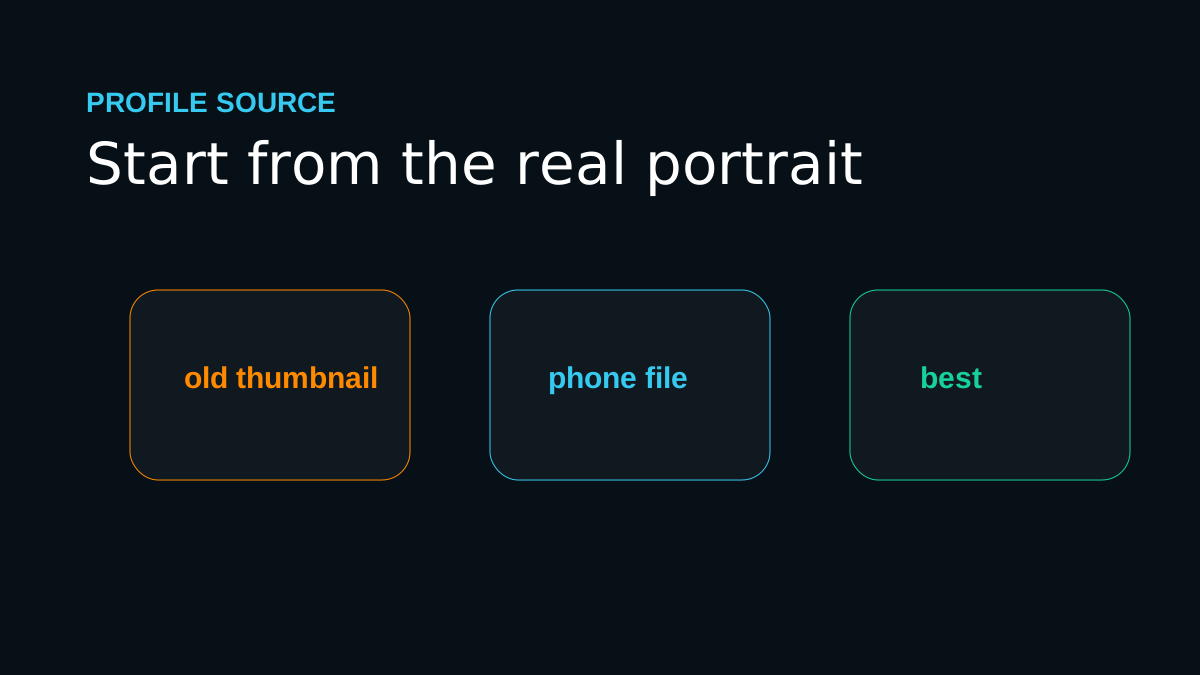
Start from the camera file, photographer export, or full-size phone image instead of a social media download.
Keep the crop realistic
Crop from chest or shoulders upward so the face is large enough without forcing AI to invent tiny details.
Upscale moderately
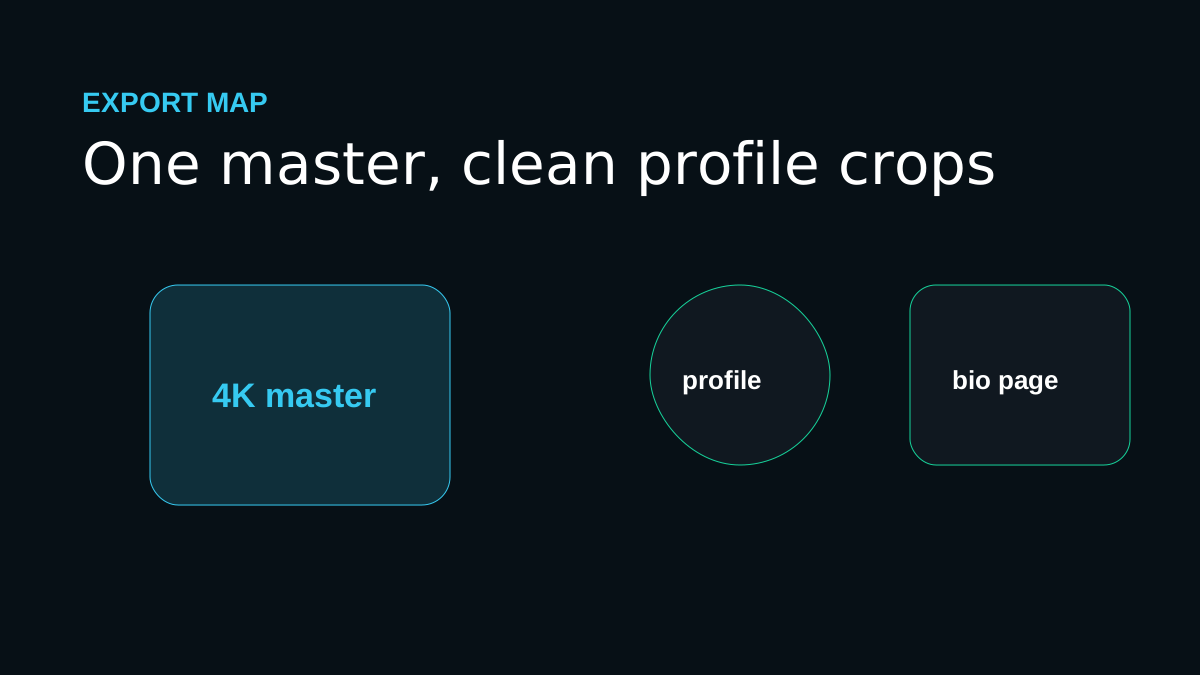
Try 2K or 4K first; most profile platforms compress images anyway, so believable detail matters more than maximum pixels.
Inspect the human details
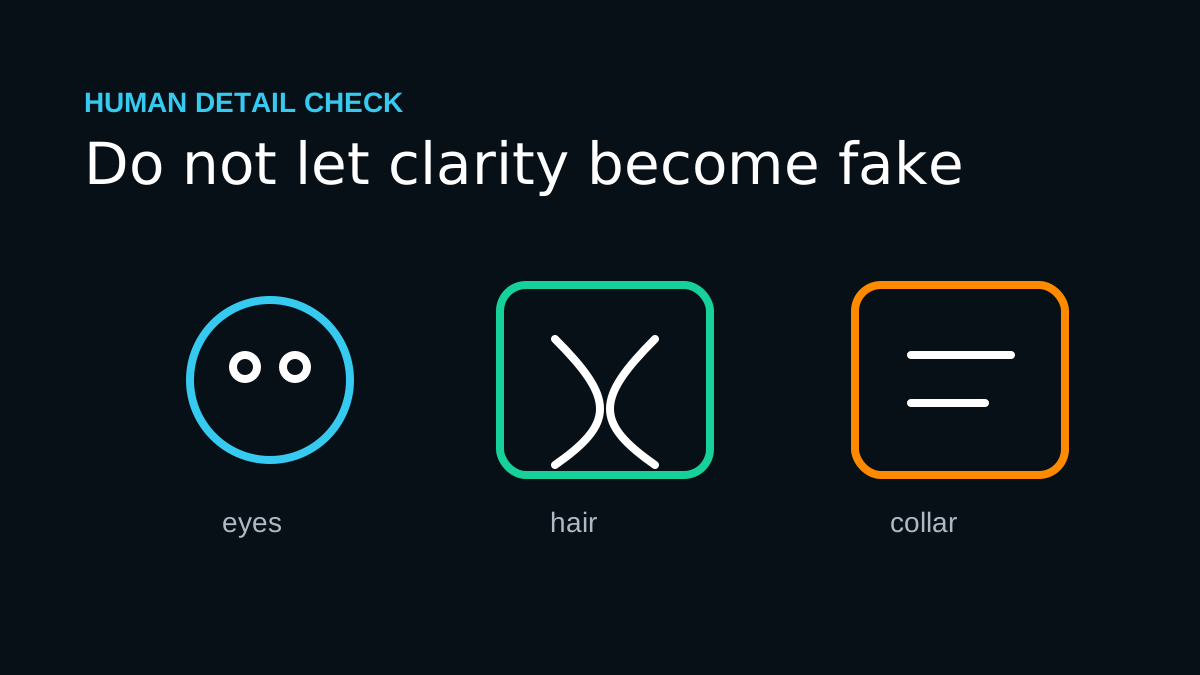
Check eyes, teeth, glasses, hairline, earrings, collar edges, and skin texture before uploading.
Workflow map
Use the original portrait if possible
Start from the camera file, photographer export, or full-size phone image instead of a social media download.
Keep the crop realistic
Crop from chest or shoulders upward so the face is large enough without forcing AI to invent tiny details.
Upscale moderately
Try 2K or 4K first; most profile platforms compress images anyway, so believable detail matters more than maximum pixels.
Inspect the human details
Check eyes, teeth, glasses, hairline, earrings, collar edges, and skin texture before uploading.
Mistakes that make the result look cheap
- Using an old low-resolution profile thumbnail as the source.
- Over-smoothing skin until the photo stops looking like you.
- Cropping so tightly that the face fills the entire frame and artifacts become obvious.
The proof check before you publish
The best profile-photo upscale feels invisible. People should notice that the photo is clear, not that software touched it.
Before you publish or print
Frequently asked questions
Should I always choose the largest upscale size?
No. Choose the smallest output that solves the real use case. Larger sizes are helpful for big prints and heavy crops, but they can exaggerate flaws from weak source files.
Can AI upscaling fix every blurry image?
No. It can improve many low-resolution or slightly soft images, but severe motion blur, missing faces, and heavy compression require realistic expectations.
What should I check after upscaling?
Inspect eyes, hands, text, product labels, straight edges, fabric, and any area that affects trust. If those areas hold up, the image is usually ready for its destination.
One last practical note
For professional images, trust comes from realism. The right workflow improves clarity while preserving identity and natural texture.
Upload your soft profile photo to ImageUpscales, generate a 4K master, and export a clean LinkedIn crop from that version.