Airbnb Photo Upscaling: Fix Dark Room Photos Before Guests Scroll Past
Guests make fast decisions from listing photos. A cleaner 4K room image can help, but only when the source is honest enough to save.
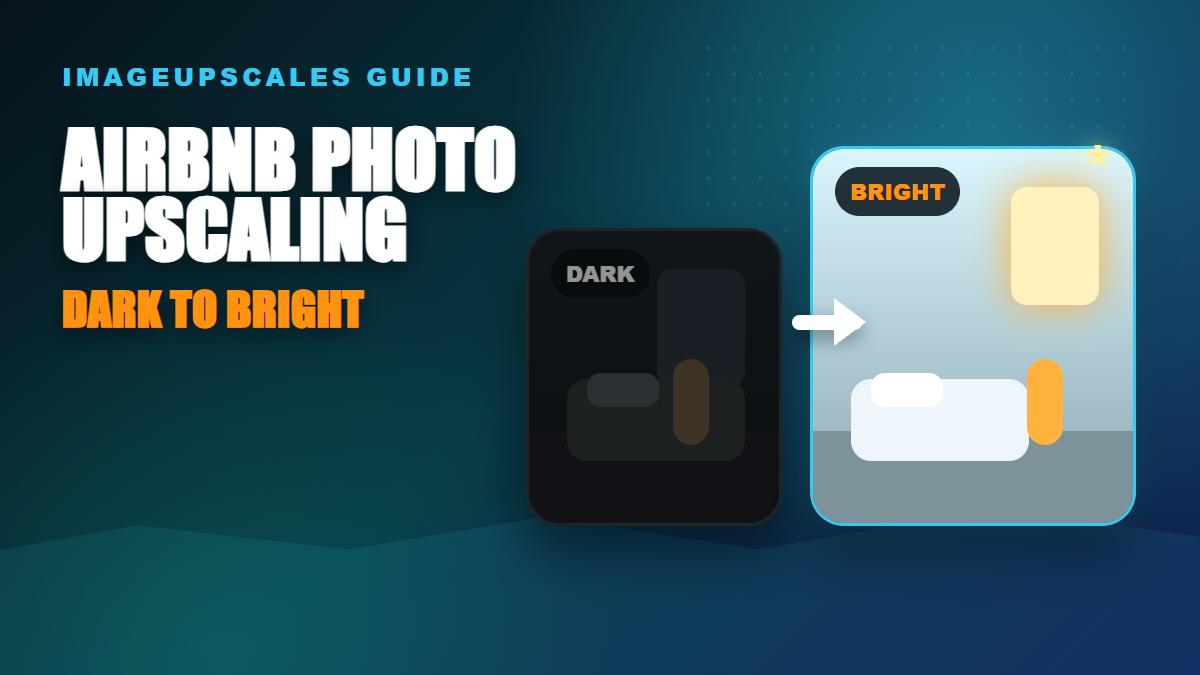
Vacation rental photos do not need to look like a luxury magazine, but they do need to answer one question fast: would I feel comfortable staying here?
The practical question is whether dark, soft, or compressed Airbnb room photos can be improved enough for a listing refresh without misleading guests.
Seasonal publishing angle
This article is scheduled for the moment people are actively preparing these images, which helps it match seasonal search demand instead of chasing it late.
Start with the real decision
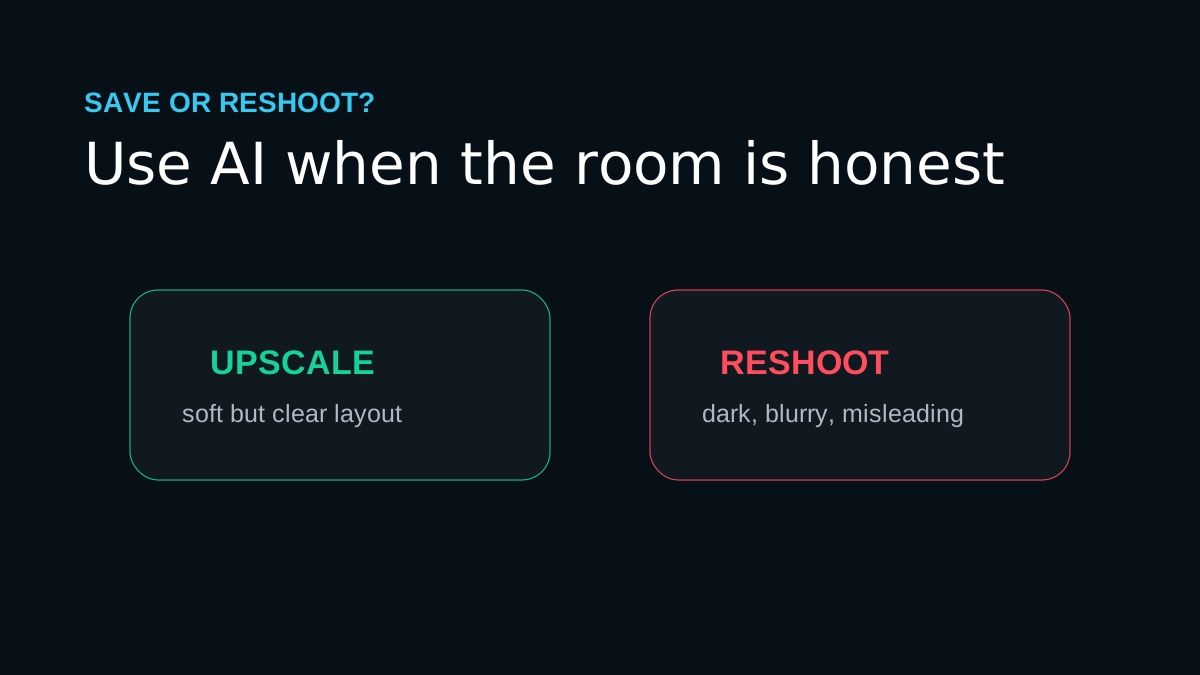
Upscale a room photo when the composition is honest and the room is just a little soft. Reshoot when the image is extremely dark, blurry from motion, hiding important areas, or making the space look different from reality.
Quick quality read
The workflow I would use
Choose the honest wide shot
Start with the photo that best explains the room layout, not the prettiest corner detail.
Upscale to 4K for listing clarity
A 4K master is usually enough for web galleries, listing cards, and mobile zooming.
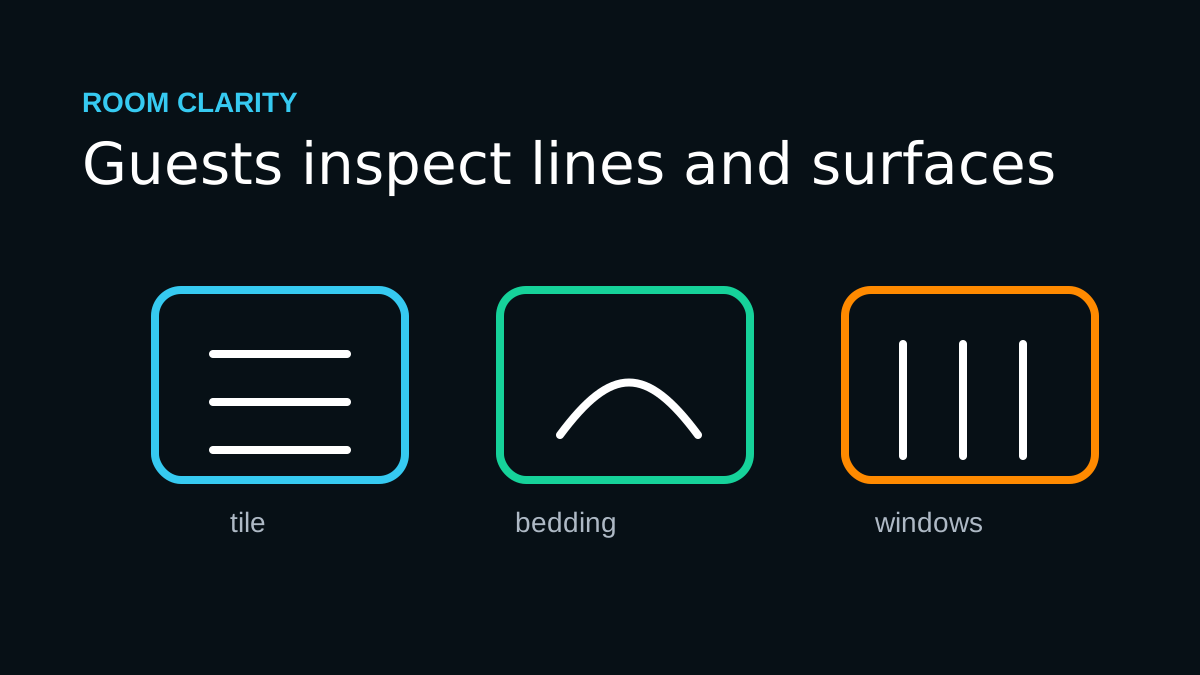
Inspect straight lines and surfaces
Look at windows, tile, cabinet edges, bedding texture, floor lines, and wall art for strange artifacts.
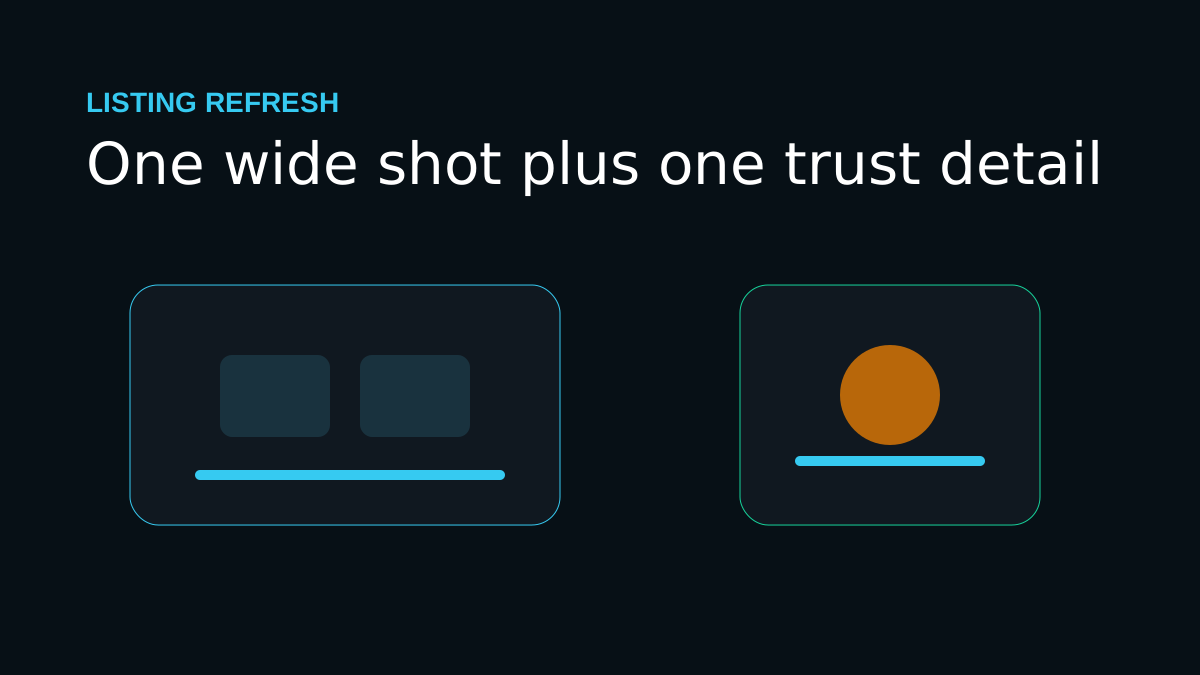
Pair one wide image with one detail crop
Use the upscaled master to create a clean room overview and a second crop showing a trust detail like workspace, bed, or kitchen finish.
Workflow map
Choose the honest wide shot
Start with the photo that best explains the room layout, not the prettiest corner detail.
Upscale to 4K for listing clarity
A 4K master is usually enough for web galleries, listing cards, and mobile zooming.
Inspect straight lines and surfaces
Look at windows, tile, cabinet edges, bedding texture, floor lines, and wall art for strange artifacts.
Pair one wide image with one detail crop
Use the upscaled master to create a clean room overview and a second crop showing a trust detail like workspace, bed, or kitchen finish.
Mistakes that make the result look cheap
- Using AI to hide damage, stains, or a layout problem guests should know about.
- Upscaling a blurry night photo when a daytime reshoot would be faster and more honest.
- Cropping out context so the room feels larger than it is.
The proof check before you publish
A stronger listing image reduces uncertainty. If the upscale makes the real room easier to understand on mobile, it can help the listing without crossing into misrepresentation.
Before you publish or print
Frequently asked questions
Should I always choose the largest upscale size?
No. Choose the smallest output that solves the real use case. Larger sizes are helpful for big prints and heavy crops, but they can exaggerate flaws from weak source files.
Can AI upscaling fix every blurry image?
No. It can improve many low-resolution or slightly soft images, but severe motion blur, missing faces, and heavy compression require realistic expectations.
What should I check after upscaling?
Inspect eyes, hands, text, product labels, straight edges, fabric, and any area that affects trust. If those areas hold up, the image is usually ready for its destination.
One last practical note
Good listing content works because it gives users confidence. Image quality, honest context, and fast comprehension matter more than dramatic editing.
Use ImageUpscales on one room hero photo first. If the 4K version makes the layout clearer without changing the room, then update the rest of the gallery.