Real-Time AI Photo Editing Is Here: From Rough Upload to Clean 4K
Real-time AI editing is not about pressing a magic button. It is about making a rough image usable faster while still checking the details that matter.
There is a moment every creator knows: you have the right image, but the file is not ready. It is a little soft, too small for the placement, or compressed from a chat app.
Real-time AI photo editing helps when the image already has a strong subject but needs resolution, clarity, and a cleaner export before it can be used on a site, ad, listing, or social post.
Seasonal publishing angle
This article is scheduled for the moment people are actively preparing these images, which helps it match seasonal search demand instead of chasing it late.
Start with the real decision
The best AI editing workflow starts with a simple question: what does this image need to do? A product photo needs trustworthy edges and labels. A portrait needs believable skin and eyes. A blog image needs to look sharp without slowing the page down.
Quick quality read
The workflow I would use
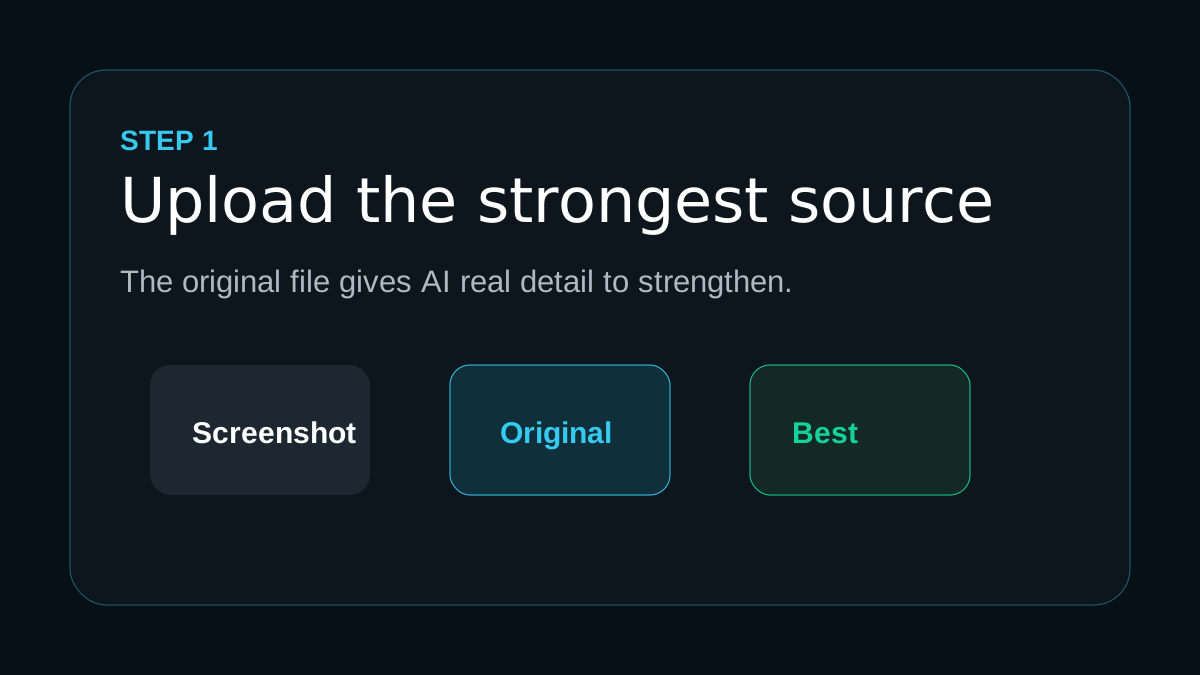
Upload the strongest source
Use the original camera file, product export, or downloaded master instead of a screenshot whenever possible.
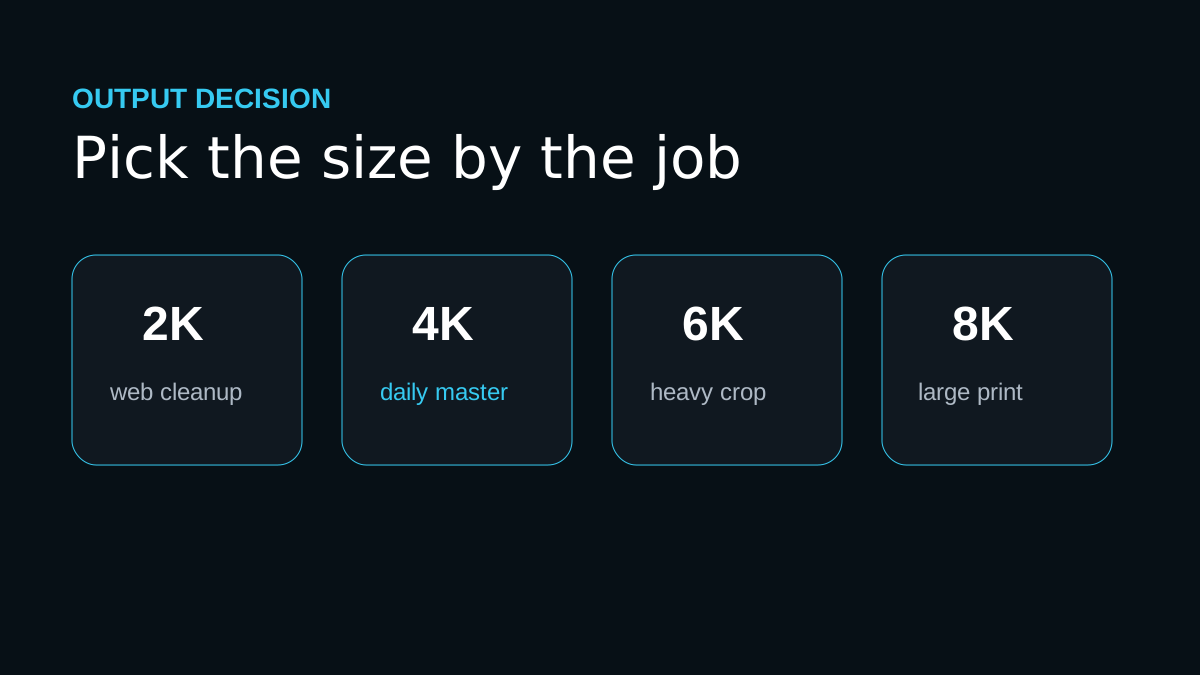
Choose the output by use case
Use 2K for web cleanup, 4K for strong everyday results, and 6K or 8K only when the crop or print size really needs it.
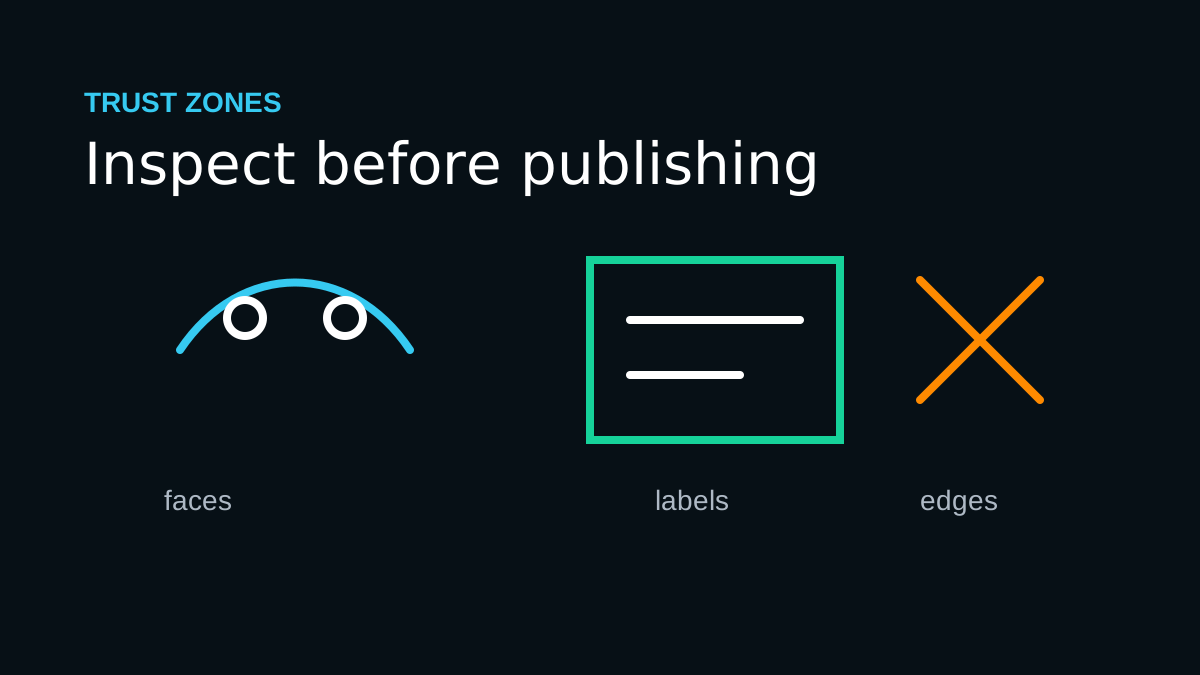
Inspect the trust zones
Look at eyes, hands, text, product labels, straight edges, and fine texture before you publish.
Export a practical master
Keep one clean full-size result, then make smaller web or social versions from that master.
Workflow map
Upload the strongest source
Use the original camera file, product export, or downloaded master instead of a screenshot whenever possible.
Choose the output by use case
Use 2K for web cleanup, 4K for strong everyday results, and 6K or 8K only when the crop or print size really needs it.
Inspect the trust zones
Look at eyes, hands, text, product labels, straight edges, and fine texture before you publish.
Export a practical master
Keep one clean full-size result, then make smaller web or social versions from that master.
Mistakes that make the result look cheap
- Treating AI editing like a one-click replacement for judgment.
- Upscaling a screenshot when the original file is available.
- Judging quality from the zoomed-out preview instead of checking faces, labels, and edges.
The proof check before you publish
The best results happen when the source has real information for the model to strengthen. AI can make a good image more usable, but it should not invent details that change what the image represents.
Before you publish or print
Frequently asked questions
Should I always choose the largest upscale size?
No. Choose the smallest output that solves the real use case. Larger sizes are helpful for big prints and heavy crops, but they can exaggerate flaws from weak source files.
Can AI upscaling fix every blurry image?
No. It can improve many low-resolution or slightly soft images, but severe motion blur, missing faces, and heavy compression require realistic expectations.
What should I check after upscaling?
Inspect eyes, hands, text, product labels, straight edges, fabric, and any area that affects trust. If those areas hold up, the image is usually ready for its destination.
One last practical note
This approach matches the way useful visual content should work: solve the user's immediate image problem, explain the tradeoffs, and make the final result easier to trust.
Try a 4K upscale with ImageUpscales and compare the before and after at the size your audience will actually see it.
