Can You Upscale a Screenshot? What Works, What Fails, and What to Try
Screenshots are tricky because text, icons, and compression artifacts expose mistakes fast. Here is the honest workflow.
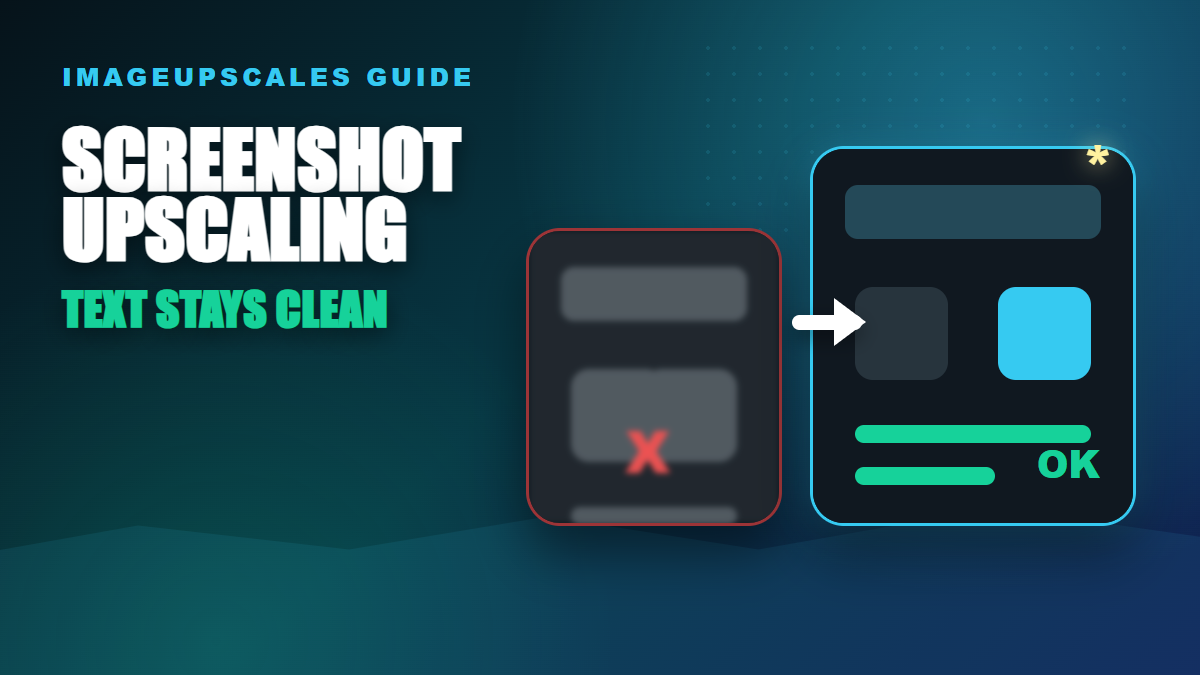
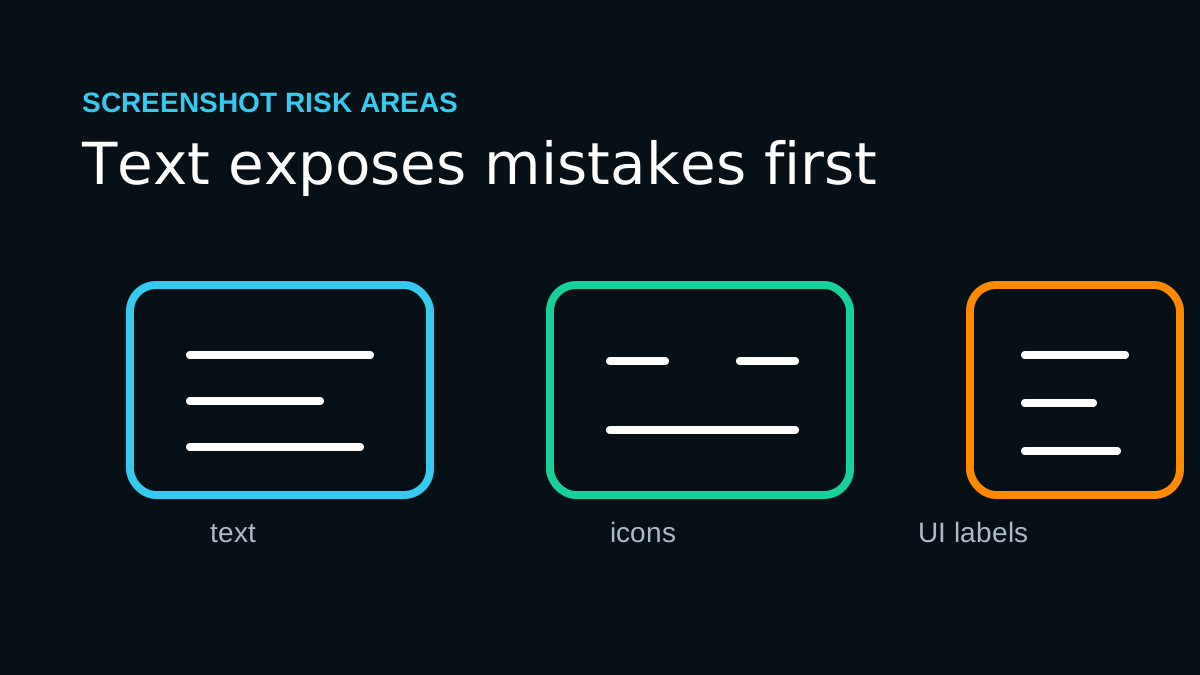
Screenshots are some of the hardest images to improve because they contain the exact things people inspect first: text, icons, thin lines, and interface edges.
The useful question is whether a low-resolution screenshot can be made usable for a blog post, help doc, slide deck, social post, or product comparison.
Seasonal publishing angle
This article is scheduled for the moment people are actively preparing these images, which helps it match seasonal search demand instead of chasing it late.
Start with the real decision
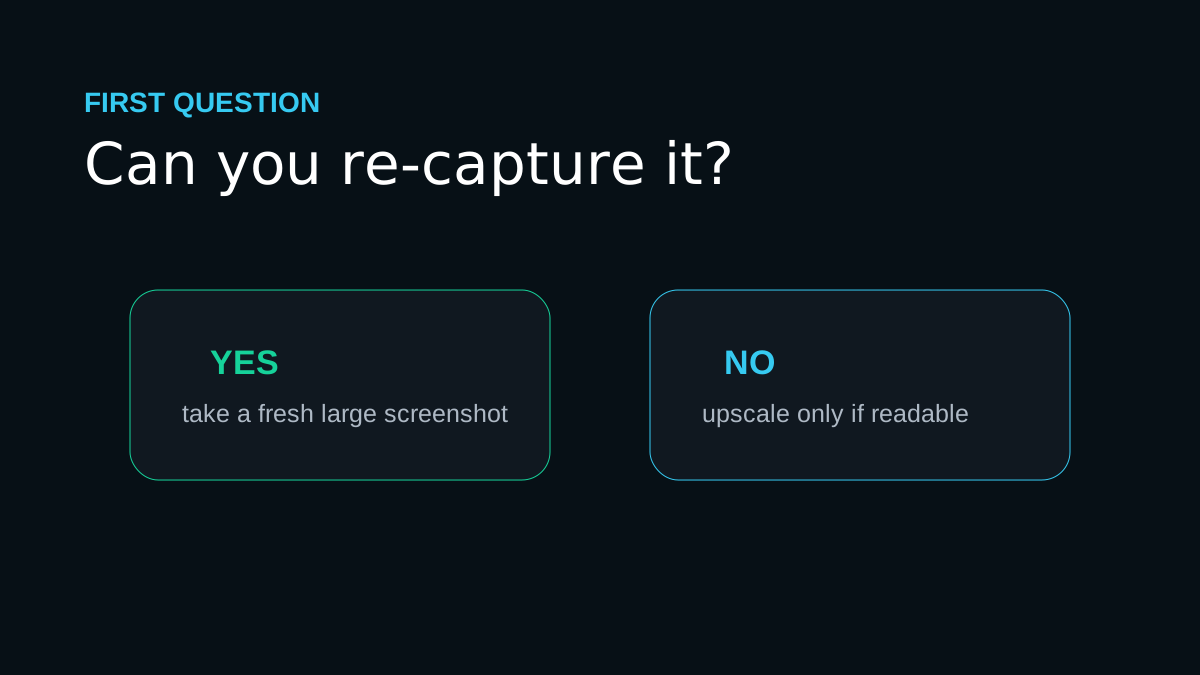
Upscale a screenshot when the original interface is readable but too small. Re-capture it when text is unreadable, the screenshot is heavily compressed, or the UI has changed since the image was taken.
Quick quality read
The workflow I would use
Try to re-capture first
If you still have access to the app, take a fresh screenshot at a larger browser zoom or higher display resolution.
Upscale only readable screenshots
If text is legible before upscaling, AI can often make the image cleaner for web and presentations.
Inspect text and icons
Look for warped letters, broken icons, strange borders, and fake UI details before publishing.
Export for the final medium
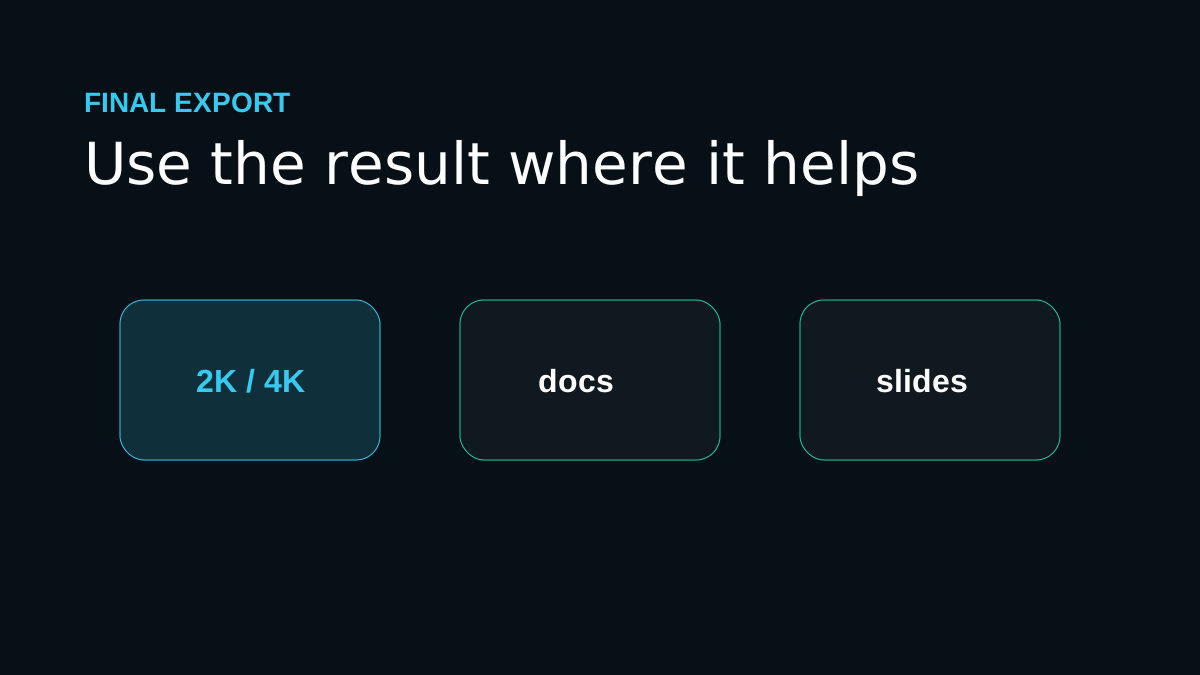
Use a cleaner 2K or 4K image for blogs, docs, and slides, then compress the final web version.
Workflow map
Try to re-capture first
If you still have access to the app, take a fresh screenshot at a larger browser zoom or higher display resolution.
Upscale only readable screenshots
If text is legible before upscaling, AI can often make the image cleaner for web and presentations.
Inspect text and icons
Look for warped letters, broken icons, strange borders, and fake UI details before publishing.
Export for the final medium
Use a cleaner 2K or 4K image for blogs, docs, and slides, then compress the final web version.
Mistakes that make the result look cheap
- Trying to recover unreadable text from a tiny screenshot.
- Using screenshot upscaling for legal, financial, or product-proof images without checking every label.
- Uploading huge screenshot files to a page when a smaller compressed export would look the same.
The proof check before you publish
Screenshot upscaling works best when it reinforces existing lines and readable text. It fails when the model has to guess what the interface said.
Before you publish or print
Frequently asked questions
Should I always choose the largest upscale size?
No. Choose the smallest output that solves the real use case. Larger sizes are helpful for big prints and heavy crops, but they can exaggerate flaws from weak source files.
Can AI upscaling fix every blurry image?
No. It can improve many low-resolution or slightly soft images, but severe motion blur, missing faces, and heavy compression require realistic expectations.
What should I check after upscaling?
Inspect eyes, hands, text, product labels, straight edges, fabric, and any area that affects trust. If those areas hold up, the image is usually ready for its destination.
One last practical note
A useful screenshot workflow is honest: re-capture when you can, upscale when the source is readable, and inspect every text area before publishing.
Drop one low-resolution screenshot into ImageUpscales and test a 2K or 4K version before you rebuild a doc or landing page around it.